Practical guide · Windows
HDD or SSD: what is in your computer?
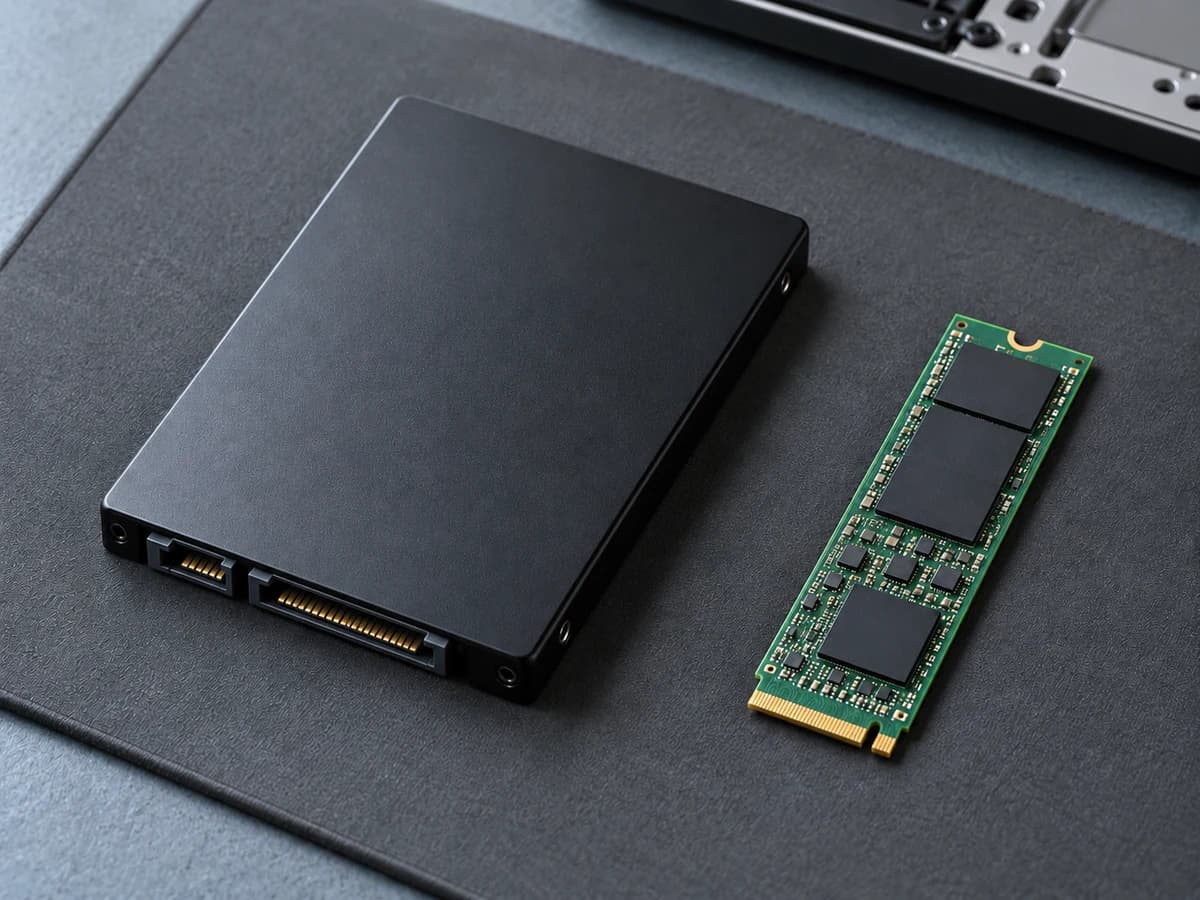
Look for the drive type and model under Performance → Disk in Task Manager. A replacement must match both the physical format and connection; M.2 describes the shape and does not automatically mean NVMe.
Step by step
Find the drive in Windows
Press Ctrl + Shift + Esc and select Performance → Disk. Note the model and HDD or SSD if Windows displays the type; check each relevant drive if you have more than one.
Confirm the type if it is missing
Look up the drive's exact model on its manufacturer's support site. A drive letter such as C: or the amount of free space does not identify it as an HDD or SSD.
Check the format and interface
Check the computer's specifications and service manual for 2.5-inch or M.2 format, length, SATA or PCIe/NVMe and any adapter. An M.2 socket alone does not establish compatibility.
Plan what happens to your files
Check your backup before replacing a drive and choose between data migration and a fresh installation. Keep any recovery keys private and secure.
What does it mean?
M.2, SATA and NVMe describe different things
M.2 is a physical format. An M.2 drive can use SATA or PCIe with NVMe, and the computer must support the drive you choose.
More space does not solve everything
A storage problem may involve space, waiting times, software or faults. Use your observations and the exact model before deciding to buy a larger or different drive.
This guide identifies storage and compatibility; it does not test drive health. If data loss or recurring read errors are suspected, prioritise the data before running a load test.
Your next step
Sources and documentation
Sources
- 01Tips to improve PC performance in Windows
Microsoft Support · Read
- 02SSD form factors: 2.5-inch, M.2 and more
Kingston Technology · Read
- 03ThinkPad T480: PSREF
Lenovo · Read
- 04Find your BitLocker recovery key
Microsoft · Read