Practical guide · Windows
Check RAM usage in Windows
Press Ctrl + Shift + Esc and select Performance → Memory in Task Manager to see RAM usage. Check while using your normal applications; one snapshot alone does not establish a need for more RAM.
Step by step
Open your usual applications
Use the computer as usual with the applications and tabs you need. Investigate the situation in which you notice delays.
Open Memory in Task Manager
Press Ctrl + Shift + Esc, then choose Performance → Memory. If the view is limited, select More details first.
Note used and available RAM
Read In use and Available at the same moment; their sum is a practical approximation of usable RAM. Use the same unit in the calculator and leave out hardware-reserved memory.
Find the applications using memory
Check the Memory column under Processes, and close only familiar applications you do not need after saving your work. Then check the same task again.
Calculate memory usage
Your result
Your usage and free RAM appear here after you calculate.
A snapshot of usage. This does not measure RAM speed or determine whether an upgrade is needed.
Formula: RAM in use ÷ total usable RAM × 100
What does it mean?
Look for a recurring need
If memory repeatedly comes under pressure while the applications you need are running, investigate RAM. Also check CPU and disk activity so you do not overlook another bottleneck.
Check the model before buying
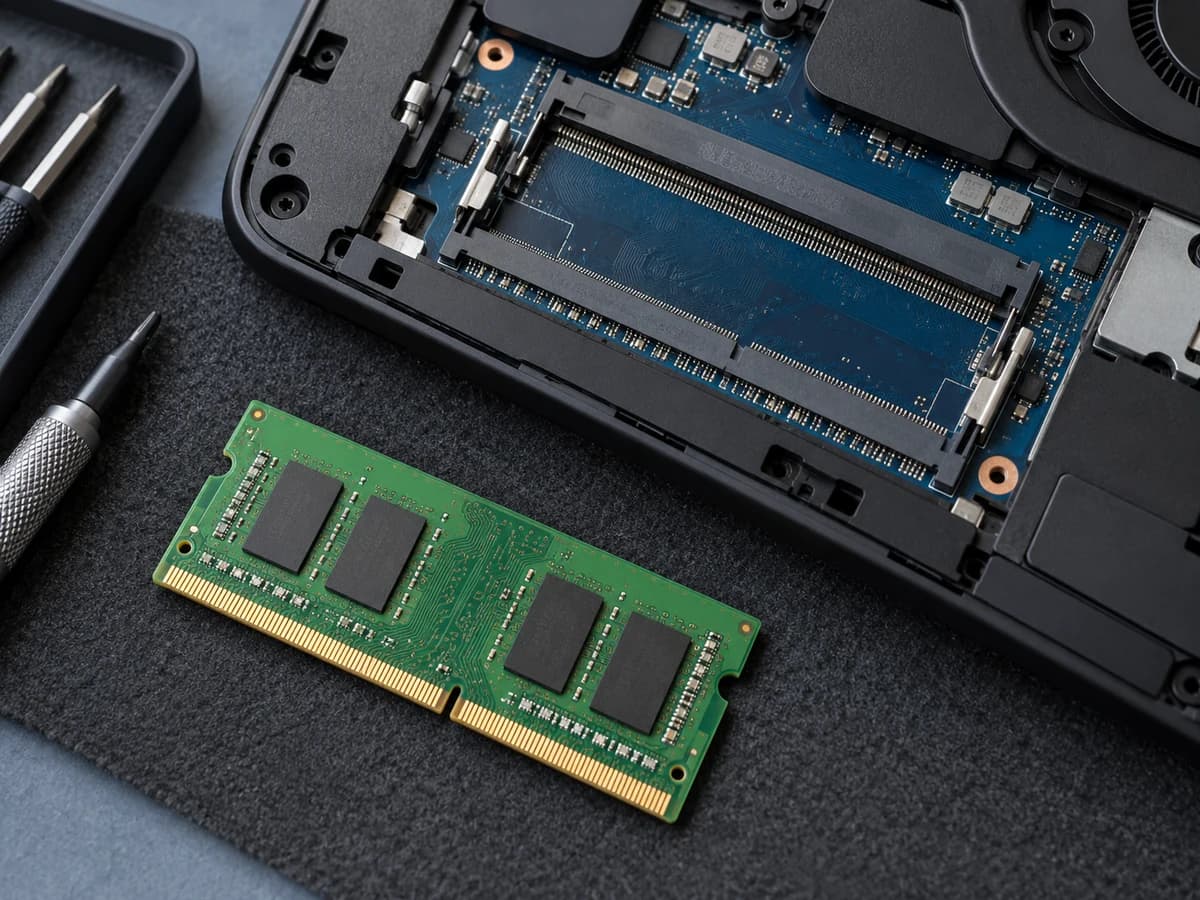
RAM may be soldered, replaceable or a mixture. The exact model, memory type, sockets and manufacturer's capacity limit determine your options.
The calculator uses the figures you enter; it measures neither physical RAM speed nor memory errors. A high usage percentage alone is not a diagnosis.
Your next step
Sources and documentation
Sources
- 01Tips to improve PC performance in Windows
Microsoft Support · Read
- 02DDR4 and DDR5: compatibility
Kingston · Read
- 03ThinkPad T480: PSREF
Lenovo · Read