Practical guide · Windows
Check battery capacity in Windows
Windows can create a battery report with powercfg /batteryreport. Full charge capacity divided by design capacity, multiplied by 100, gives the reported capacity as a percentage of its original specification.
Step by step
Open Command Prompt
Search for Command Prompt in Start, right-click it and choose Run as administrator. On a work computer, you may need your IT administrator's help.
Create the report
Enter the command below and press Enter. Windows displays the path to the HTML file saved on your computer.
powercfg /batteryreportFind the two capacity figures
Open the file through File Explorer and find Design Capacity and Full Charge Capacity under Installed batteries. Use figures for the same battery in the same unit.
Calculate and compare with daily use
Enter both figures in this page's calculator, which uses whole mWh. Compare the result with how long the computer actually lasts away from its charger.
Calculate battery capacity
Your result
Your capacity appears here once you enter both values and calculate.
Calculated from your values. This is not the current charge or a diagnosis.
Formula: Full Charge Capacity ÷ Design Capacity × 100
What does it mean?
Capacity and charge are different figures
A 100% charge means full relative to the battery's current capacity. It does not mean the battery stores as much energy as when it was new.
Missing figures? Leave them unknown
Calculate each battery separately if the computer has more than one. If capacity is missing or the result exceeds 100%, check the report and units before drawing a conclusion.
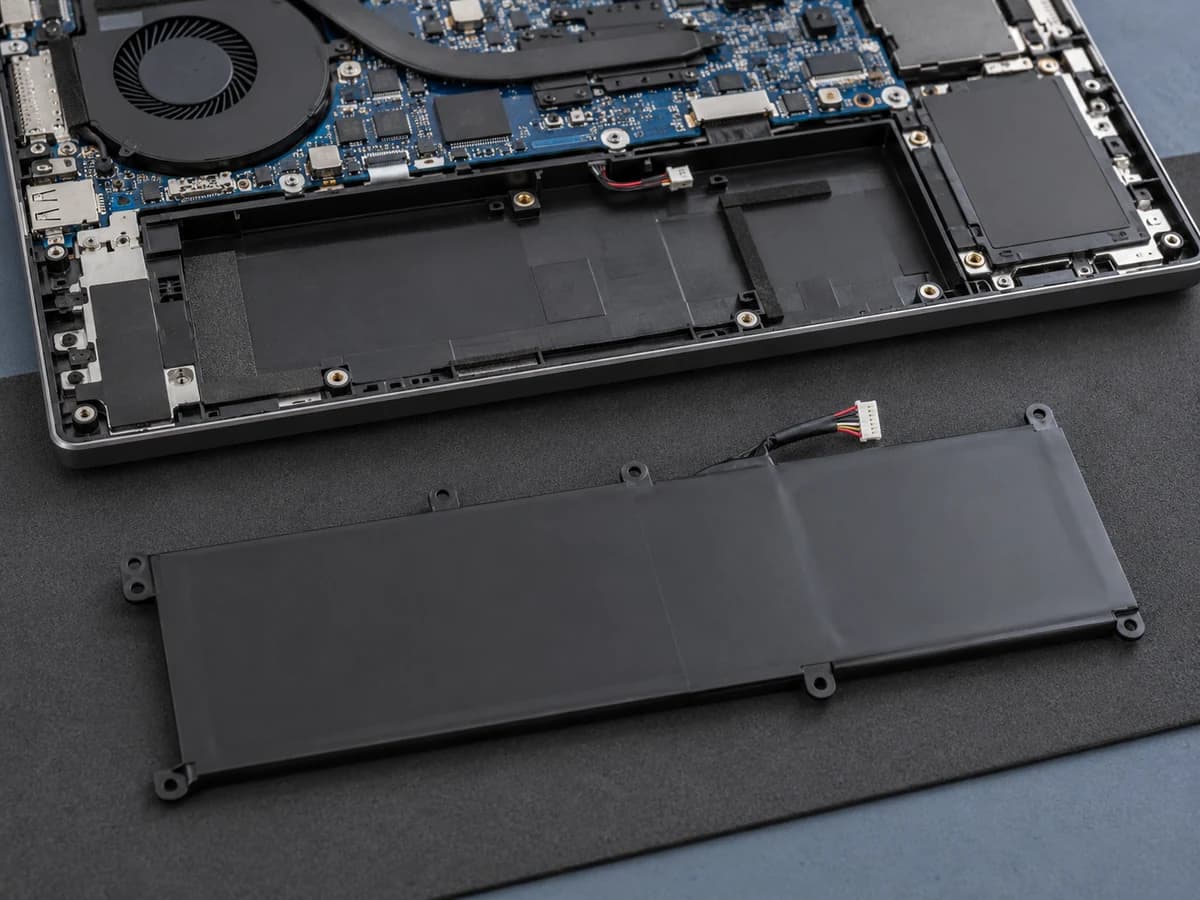
The result calculates reported capacities; it is not a physical safety test or a battery-life guarantee. If the battery is visibly swollen, stop using the device and get help with safe replacement.
Your next step
Sources and documentation
Sources
- 01Powercfg: batteryreport
Microsoft Learn · Read
- 02Caring for your battery in Windows
Microsoft Support · Read
- 03How to check your Surface battery capacity
Microsoft Support · Read
- 04Handling swollen lithium-ion batteries
Dell · Read